
Time Synchronization Services
GreenArrow depends on an accurate system clock to track events and logs. It is critical that the system time never jump forwards or backwards while GreenArrow is running. GreenArrow assumes the system clock increases monotonically, time jumps can cause statistics to fall out of sync and some events to be lost.
GreenArrow depends on time-sync.target on all distributions, which waits for the system clock to be synchronized with an accurate external time service before starting GreenArrow’s processes. This eliminates a class of problems caused by systems that are slow to synchronize their clock at boot.
If time synchronization is not working during reboots or after installing GreenArrow, systemd will not start GreenArrow’s processes until the issue is resolved.
This document explains how to manually install systemd time-sync services, identify and address common issues with these services, and troubleshoot basic time synchronization problems.
Any NTP service that activates time-sync.target upon synchronization is supported. This document covers two options: Chrony and the systemd built-in systemd-timesyncd.
- Table of Contents
- Using Chrony
- Using SystemD Built-in TimeSync Service
- GreenArrow Symptoms of Time Synchronization Service Problems
- Verifying Time Synchronization is Working
Using Chrony
Chrony is a widely used NTP (Network Time Protocol) client and server for Linux. When Chrony is installed, enable the “chrony-wait.service” unit to ensure time-sync.target is only activated after Chrony has synchronized the clock.
Install Chrony:
-
Debian/Ubuntu:
apt-get update && apt-get -y install chrony -
RHEL and RHEL-based distributions:
dnf install -y chrony
Enable Chrony and chrony-wait.service:
systemctl enable chronyd.service
systemctl enable chrony-wait.service
Start Chrony:
systemctl start chronyd.service
Verify the service started successfully:
systemctl status chronyd.service
For installation, configuration, and troubleshooting details, refer to the Chrony documentation.
Using SystemD Built-in TimeSync Service
SystemD includes a lightweight time synchronization service. This section explains how to install and troubleshoot this service.
Installing and Running SystemD TimeSync Service
This service is available on the package systemd-timesyncd.
Install systemd-timesyncd:
-
Debian/Ubuntu distributions:
apt-get update && apt-get -y install systemd-timesyncd -
RHEL and RHEL-based distributions:
dnf install -y systemd-timesyncd
Enable and start systemd-timesyncd:
systemctl enable systemd-timesyncd
systemctl start systemd-timesyncd
Verify that the service started successfully:
systemctl status systemd-timesyncd.service
It should be similar to this screenshot:
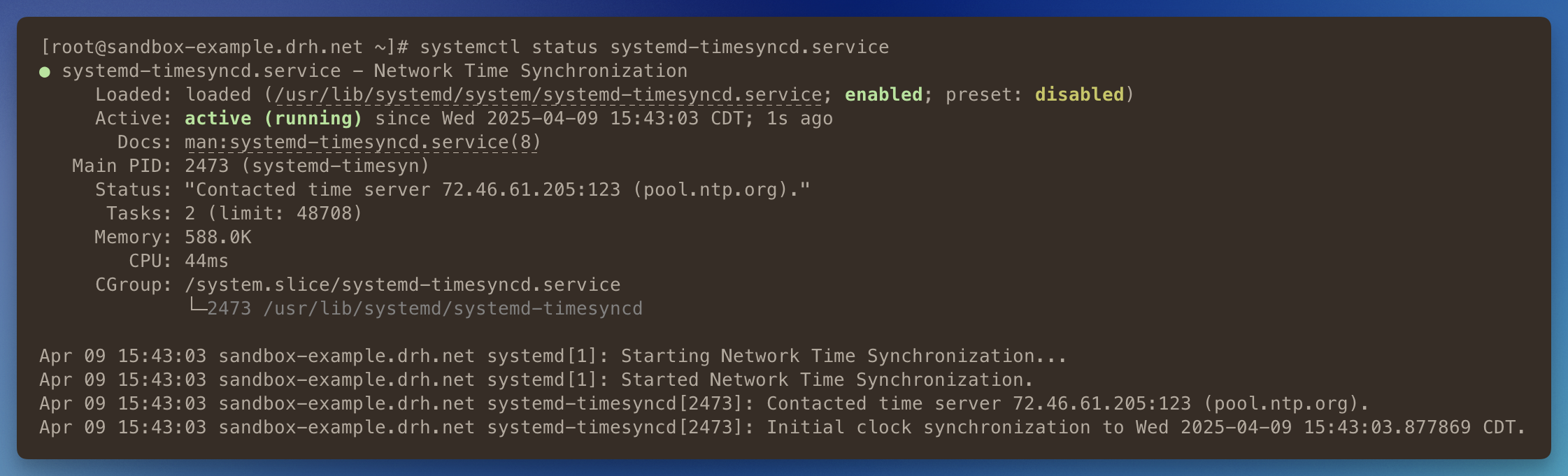
If the service status is similar to the one in the screenshot, in particular it prints a successful Initial Clock synchronization then there are no more steps, you can resume upgrading or installing GreenArrow.
If the service status is very different or it seems that the system time was not synchronized continue reading.
Troubleshooting systemd-timesyncd
Run the following commands to check the status of systemd-timesyncd and systemd-time-wait-sync services:
systemctl status systemd-timesyncd.service
systemctl status systemd-time-wait-sync.service
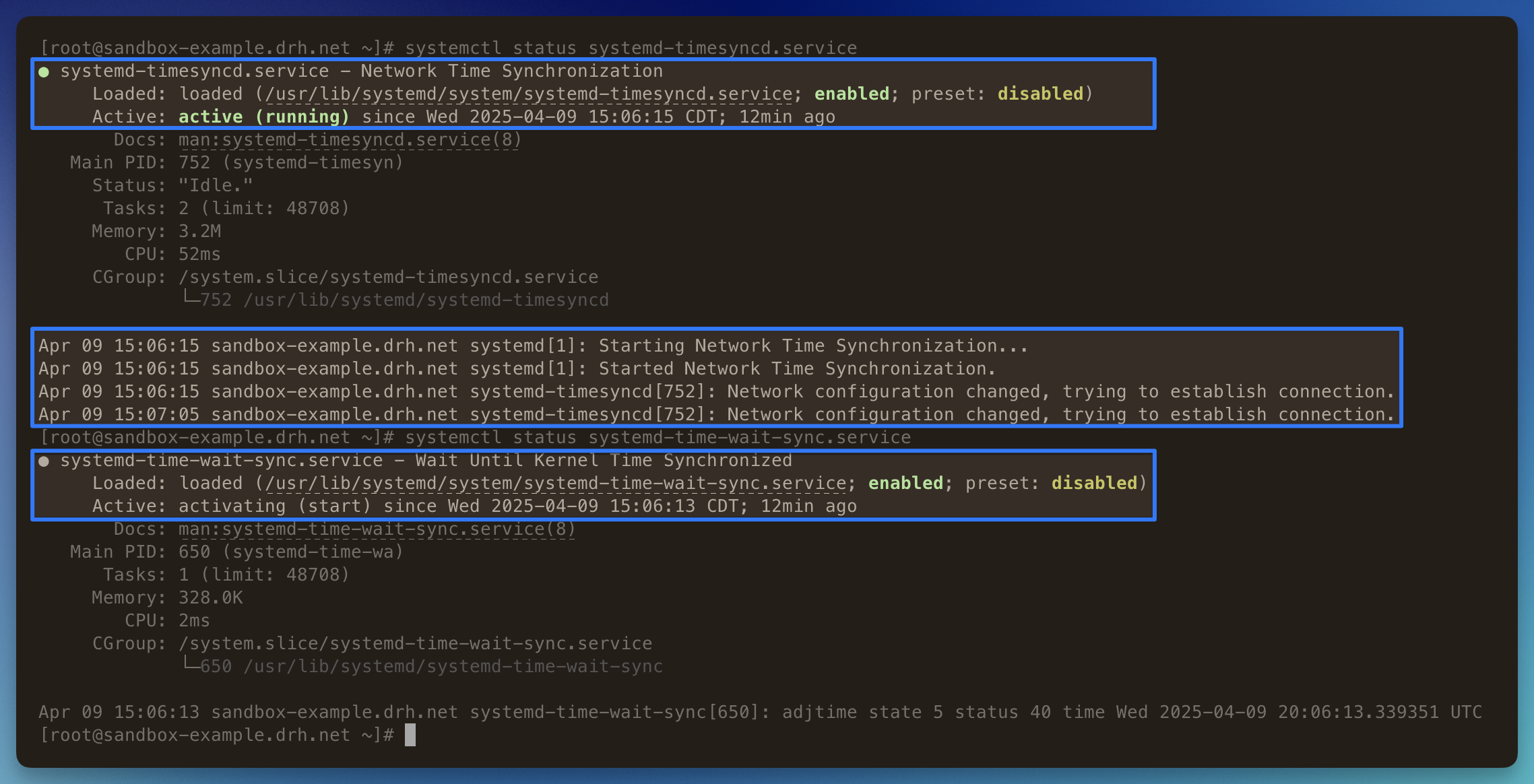
The screenshot below shows the output on a server where NTP is not allowed, highlighting relevant lines:
-
The Active status for
systemd-timesyncdis “active (running)”, which is the expected status. However the last lines show that the service is still trying to establish a connection to the NTP server. No indication of an NTP server contacted or of a synchronized clock. -
The Active status for
systemd-time-wait-syncis “activating (start)”, and it has been in this status for 12 minutes. This is a system service that delays the start of units that are ordered after time-sync.target until the system time has been synchronized with an accurate remote reference time source. When the system time has sync’ed the service Active status will change to “active (exited)”.
The systemd-timesyncd service will keep trying to reach an NTP server, until it does it won’t signal the systemd-time-wait-sync service.
Find out and resolve any issues preventing your system from reaching NTP servers. For example NTP traffic could be blocked by a firewall or specific NTP servers should be used for time synchronzation.
Changing systemd-timesyncd NTP servers and other options
To change the systemd-timesyncd service settings edit the /etc/systemd/timesyncd.conf file. See the man page for timesyncd.conf for more details about settings available in this file.
The configuration file on our example sandbox looks like this (removing comment lines):
[Time]
NTP=pool.ntp.org
And this configuration fetches time from NTP server 10.10.15.123:
[Time]
NTP=10.10.15.123
See the man page for timesyncd.conf for reference.
After making changes to the configuration file reload or restart systemd-timesyncd.service and systemd-time-wait-sync.service and check their status.
This screenshot shows an example of systemd-timesyncd that successfully synchronized.
GreenArrow Symptoms of Time Synchronization Service Problems
GreenArrow’s SystemD service depends on time-sync.target. This means that GreenArrow’s service will wait until the server’s time has been synchronized before starting its processes.
If the server can’t reach an NTP service to sync its clock then the time-sync.target unit will wait indefinitely preventing GreenArrow’s process from starting up.
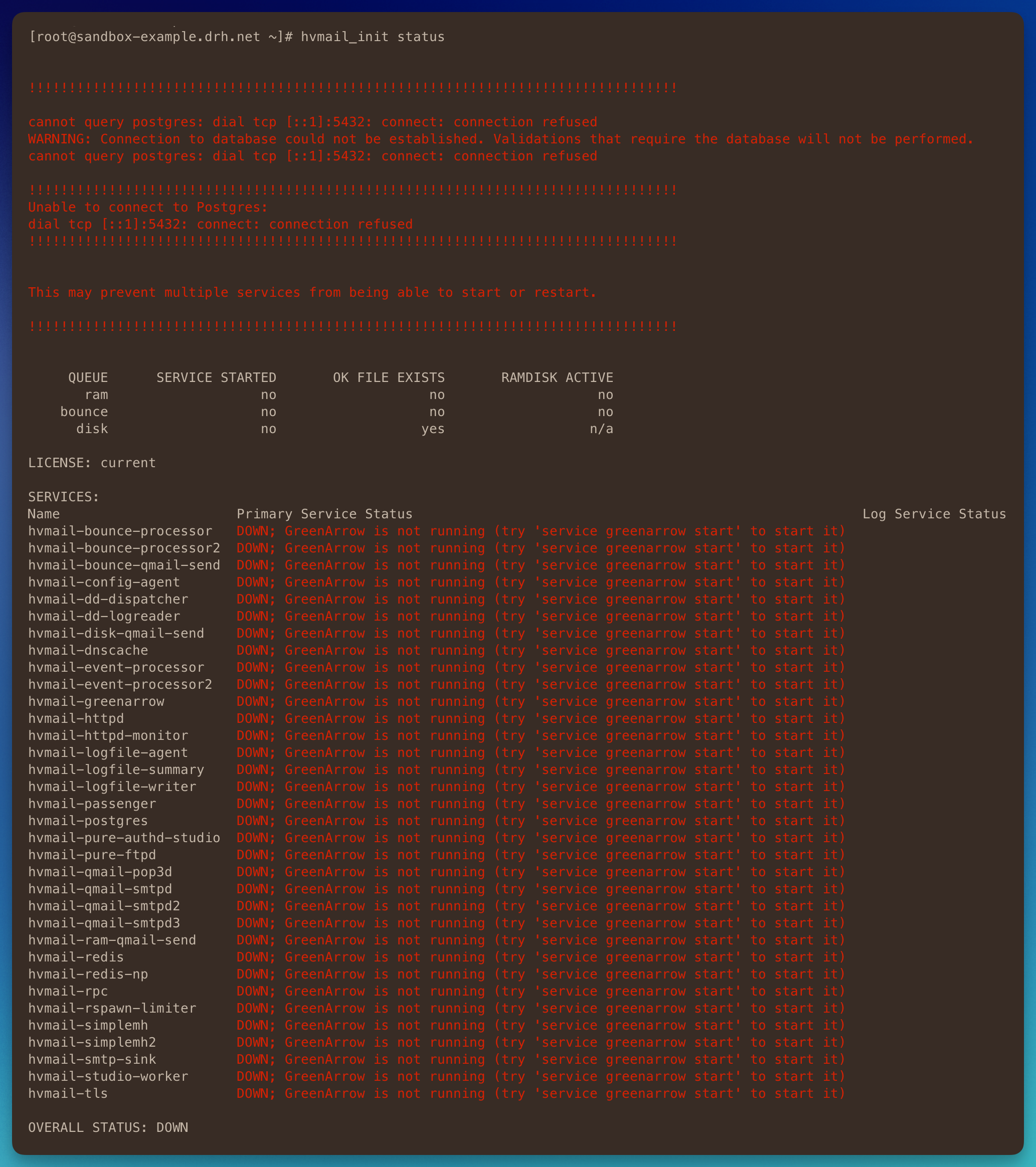
A symptom of an GreenArrow waiting for time synchronization is that greenarrow service status can’t connect to the database and all of its “services” appear down.
As in this screenshot:
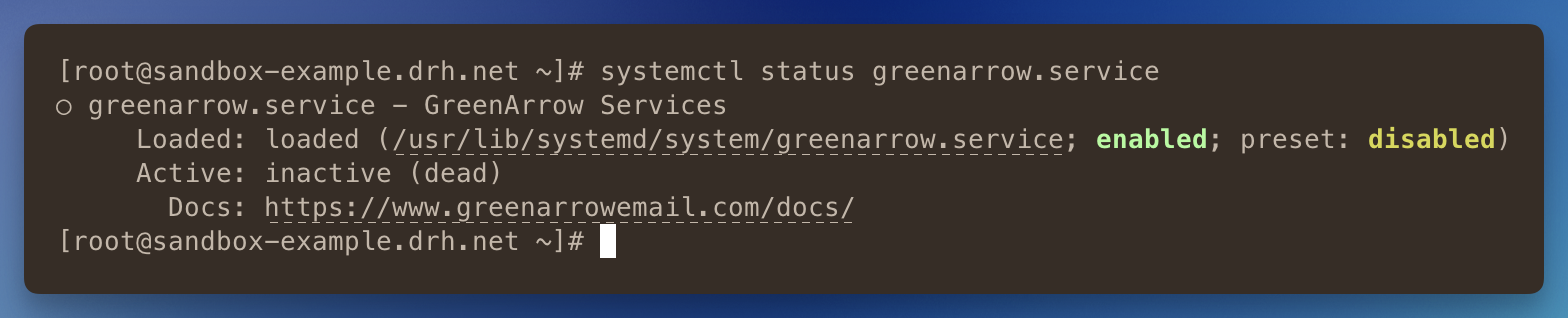
When this is the problem, systemctl status greenarrow.service will print that the service was “loaded”, however, the Active line will print “inactive (dead)”, as in the screenshot below:
This error can happen if time synchronization fails when installing or upgrading GreenArrow, or during reboots.
For example, we have seen this error on environments where custom/local NTP servers were used and permissions were changed preventing NTP access from the server running GreenArrow. Time synchronization gets stuck on the next boot and GreenArrow can’t start.
Verifying Time Synchronization is Working
Run the following commands to query time synchronization status:
timedatectl status
timedatectl timesync-status
These commands should show that the system clock is synchronized, the NTP service is active, and details about the NTP server that has been contacted.
This is an example of the output printed by these commands:
# timedatectl status
               Local time: Wed 2025-04-09 16:04:50 CDT
           Universal time: Wed 2025-04-09 21:04:50 UTC
                 RTC time: Wed 2025-04-09 21:04:50
                Time zone: America/Chicago (CDT, -0500)
System clock synchronized: yes
              NTP service: active
          RTC in local TZ: no

-------

# timedatectl timesync-status
       Server: 66.85.78.80 (pool.ntp.org)
Poll interval: 34min 8s (min: 32s; max 34min 8s)
         Leap: normal
      Version: 4
      Stratum: 2
    Reference: 233B1B6C
    Precision: 1us (-22)
Root distance: 28.166ms (max: 5s)
       Offset: -1.298ms
        Delay: 29.779ms
       Jitter: 4.369ms
 Packet count: 59
    Frequency: +11.716ppm
When the timesync service can’t reach an NTP server timesync-status’s output may be slightly different, similar to the output below:
# timedatectl timesync-status
       Server: 144.202.41.38 (pool.ntp.org)
Poll interval: 17min 4s (min: 32s; max 34min 8s)
 Packet count: 0
Note that the packet count line is 0 and the poll interval is quite long. It hasn’t received any packets from the NTP server.
If time synchronization is not working you will need to troubleshoot time synchronization before installing, rebooting, or upgrading GreenArrow.